You are about to enter the NPS-AID Learning & Resource Center.
This area is restricted to active NPS-AID national or authorized state, county or local emergency services and public safety agency personnel only, including law enforcement, fire, EMS, dispatch, and authorized partner agencies. The materials and resources within are intended solely for official training, operational awareness, and professional use.
By proceeding, you confirm that you are an authorized NPS-AID public safety or emergency services user and acknowledge that unauthorized access, use, or distribution of these materials is prohibited.
If you are not an authorized user, please do not proceed.

LEARNING AND RESOURCE CENTER
Video Training Series
Access to the complete series of NPS-AID program training Videos.
Quick Agency Setup Guide
Reference guide for implementing the NPS-AID program.
Processing Options Guide
Reference guide regarding the dropdown menu options for community listings.
NPS-AID Web-Portal
Information to activate an agency’s NPS-AID community web-portal.
Email (white-label)
Important information for agencies to ensure email notifications are recieved.
NPS-AID Permission Levels
Details regarding the two (2) available NPS-AID user permission levels.
Agency Training Package
Complete NPS-AID program training and agency setup package.
New User Activation Code
Information on where to find your agency and new user activation code.
NPS-AID Reference Guide
Overview of the main features of the NPS-AID agency module.
Account Security
Network requirements for creating and maintaining an OPS Network user account.
Technical Support
Technical support reporting system for the NPS-AID program.
Get answers to your most frequently asked questions.
Supporting Materials
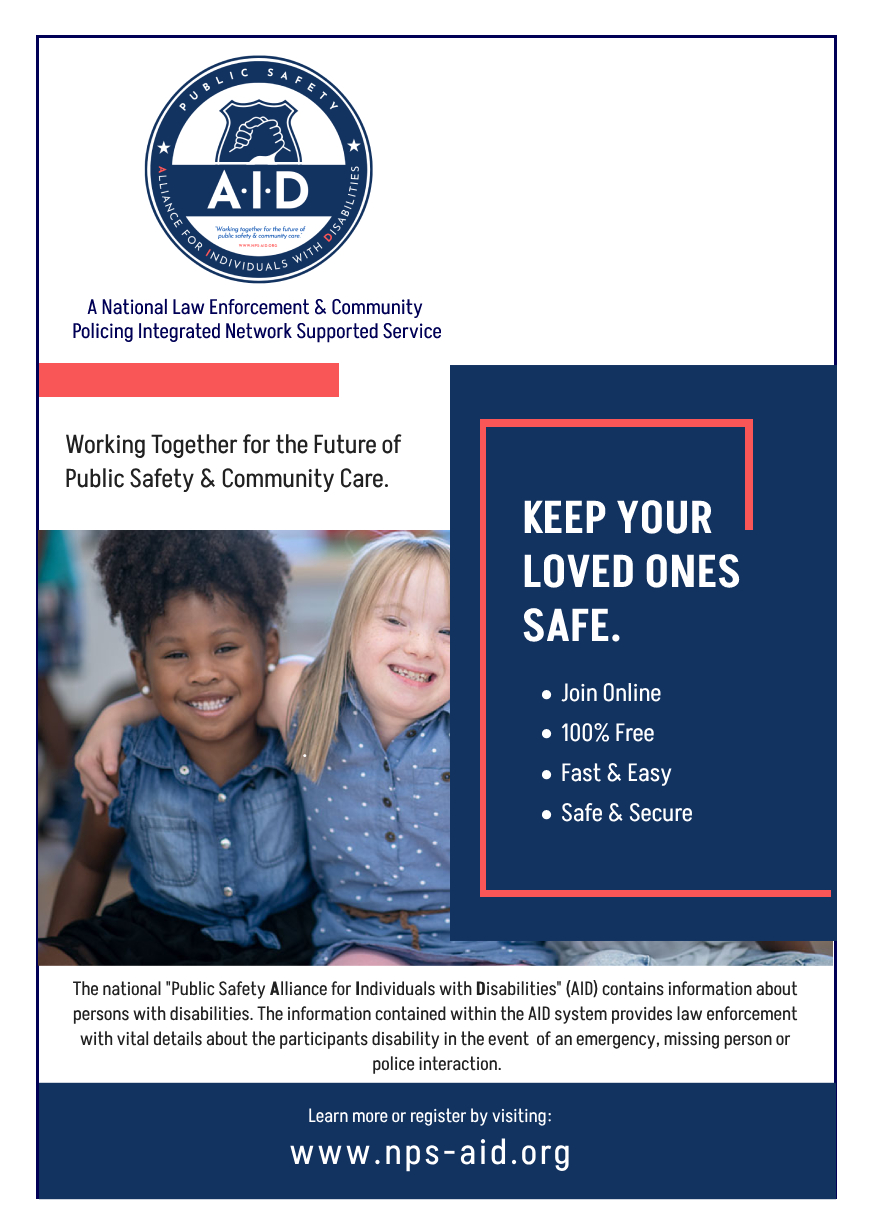
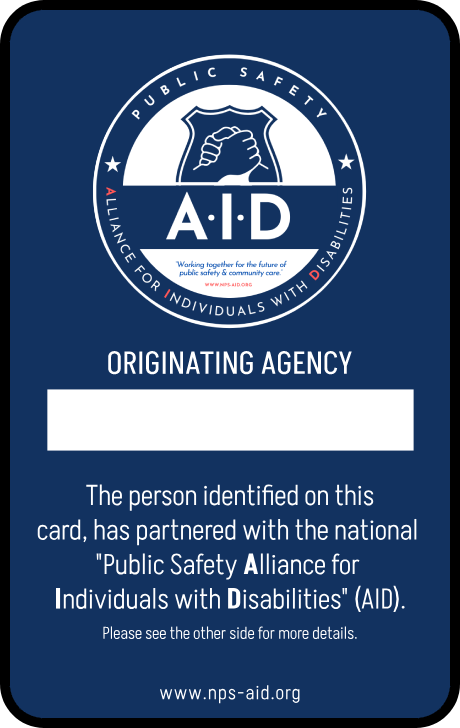
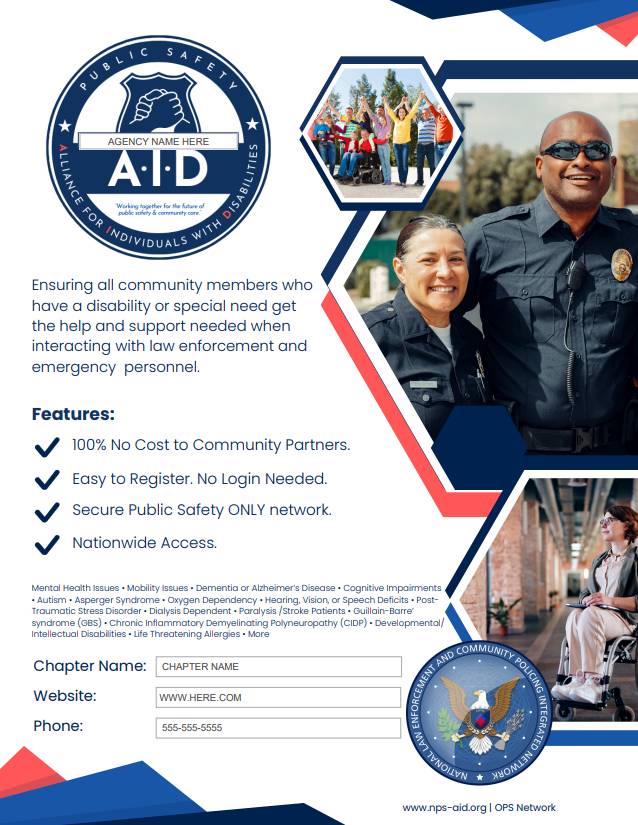
Below you will find resources to assist with managing your ageny’s NPS-AID program. These resources include a “template” agency policy, informational handout (for printing), member identification cards (for printing) and a window sticker/cling (for printing).
Click on each item to open a version that has fillable fields to customize them.
All OPS Network “NPS-AID” program participating agencies are authorized to download these files and utilize them when promoting the program and for items to be provided to citizens during the confirmation process.
Agency Policy Template
Designed to assist agencies with implementing NPS-AID guidelines.
Word Document (Edit)
Press Release Template
Download the NPS-AID Press Release template in word format.
Word Document (Edit)
Fillable Application Form
Complete fillable manual form for assisting members who need assistance.
PDF Document
Blue Envelope Template
Template for agencies developing the Blue Envelope Program.
Blue Envelope Press Template
Press Release template for launcing the Blue Envelope Program.
Blue Envelope Guide
NPS-AID (WORD) guide for agencies developing the Blue Envelope Program.
Blue Envelope Guide
Webpage text template for agencies developing the Blue Envelope Program.
Blue Envelope Guide
NPS-AID (PDF) guide for agencies developing the Blue Envelope Program.
Existing SNR Transfer (NJ)
Existing SNR transfer guide for agencies with existing SNR’s switching to NJPS-AID.
PLEASE READ: Blue Envelopes can take up to 2 to 6 weeks for deliver. All orders are designed in-house by OPS designers then drop-shipped from the printing service. Please allow proper time for printing and ensure your desired delivery address is correct on the order form. Prior to order, you will be contacted to confirm the order and method of payment so please provide an accurate contact number.
To place an order for Blue Envelopes, please email your request to: support@opspolice.com
Please include:
- Agency Name
- Agency Address
- Contact Person
- Contact Email
- Contact Phone
- Quantity of Envelopes
- Any special notes or instructions

Promotional Poster/Flyer
Sticker/Window Cling

Promotional Poster/Flyer

Custom ID Card – Front
Promotional Poster/Flyer
Custom ID Card – Back
Promotional Poster/Flyer

Frequently Asked Questions
Agency/Division Management
How does an agency select who has access to NPS-AID?
It is up to the agency leadership to determine who has access to NPS-AID. They can grant access to all sworn users or selected members only.
Where do I find my agency/division user activation code?
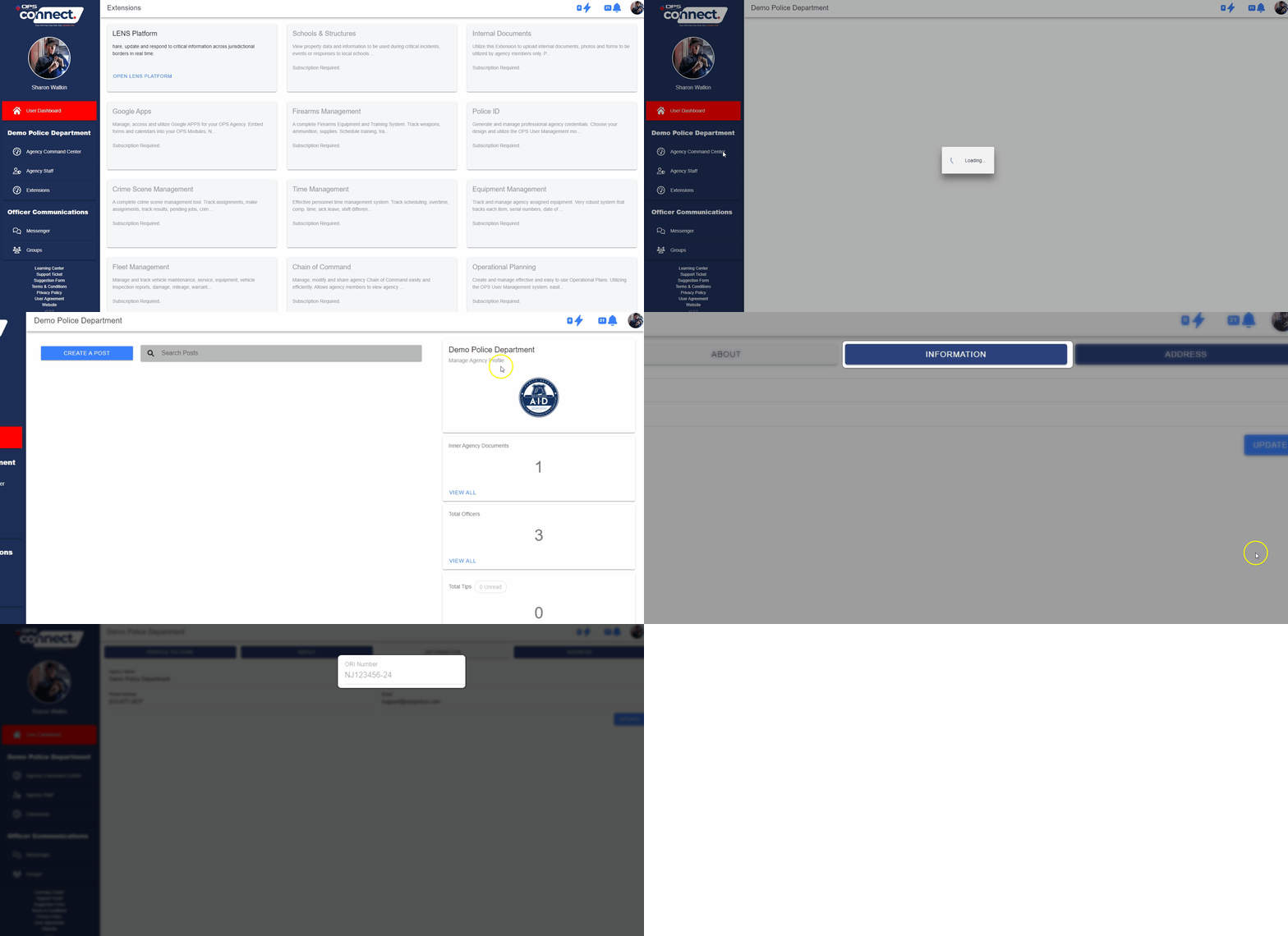
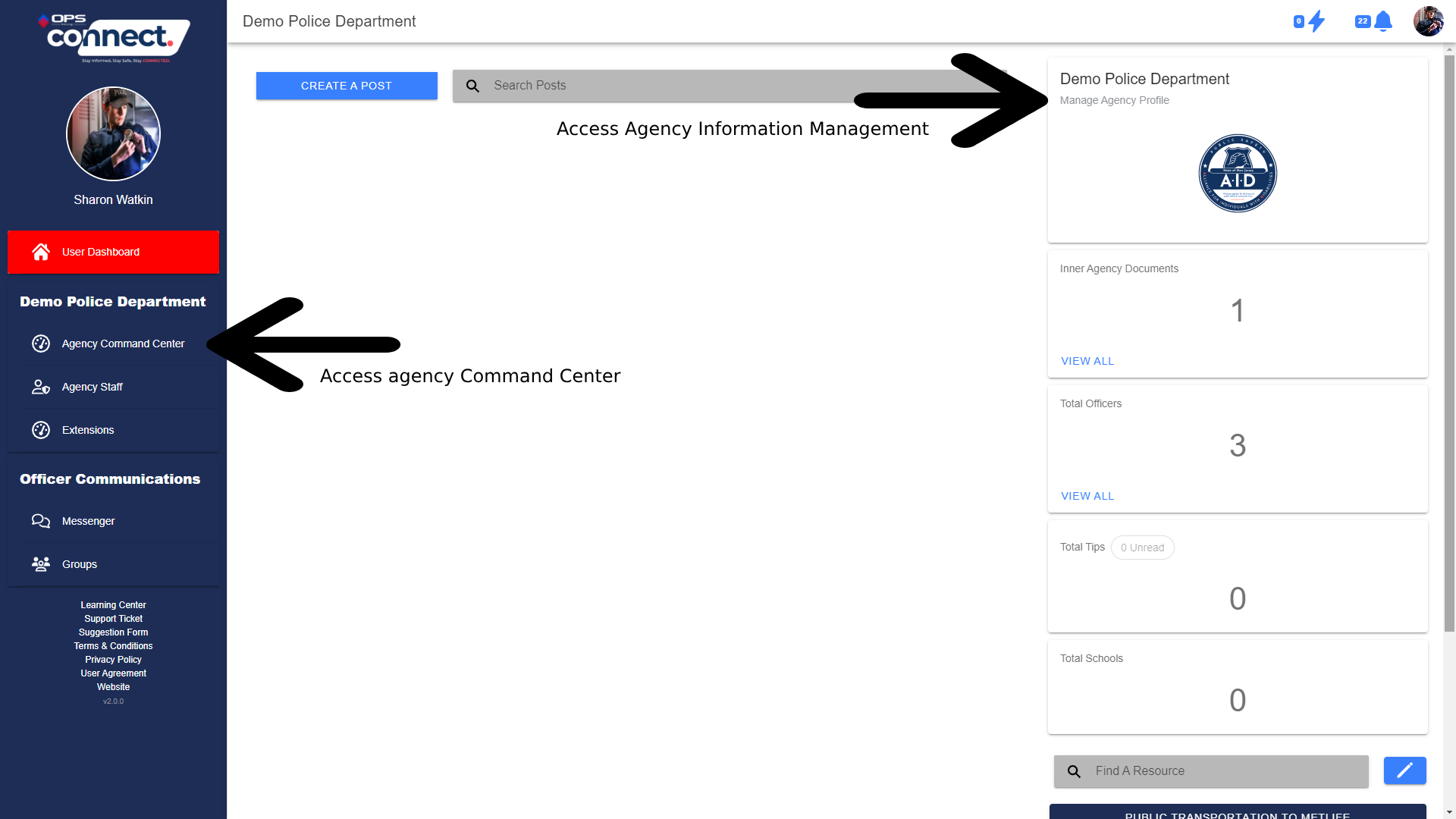
- Master Administrators can locate their agency’s user activation code by clicking on the Command Center link on the sidebar once logged into OPS Connect. (See Diagram Below)
- On the top of the Command Center sidebar, under the Agency’s Name, the user will see a link called “Manage Agency Profile”. (See Diagram Below)
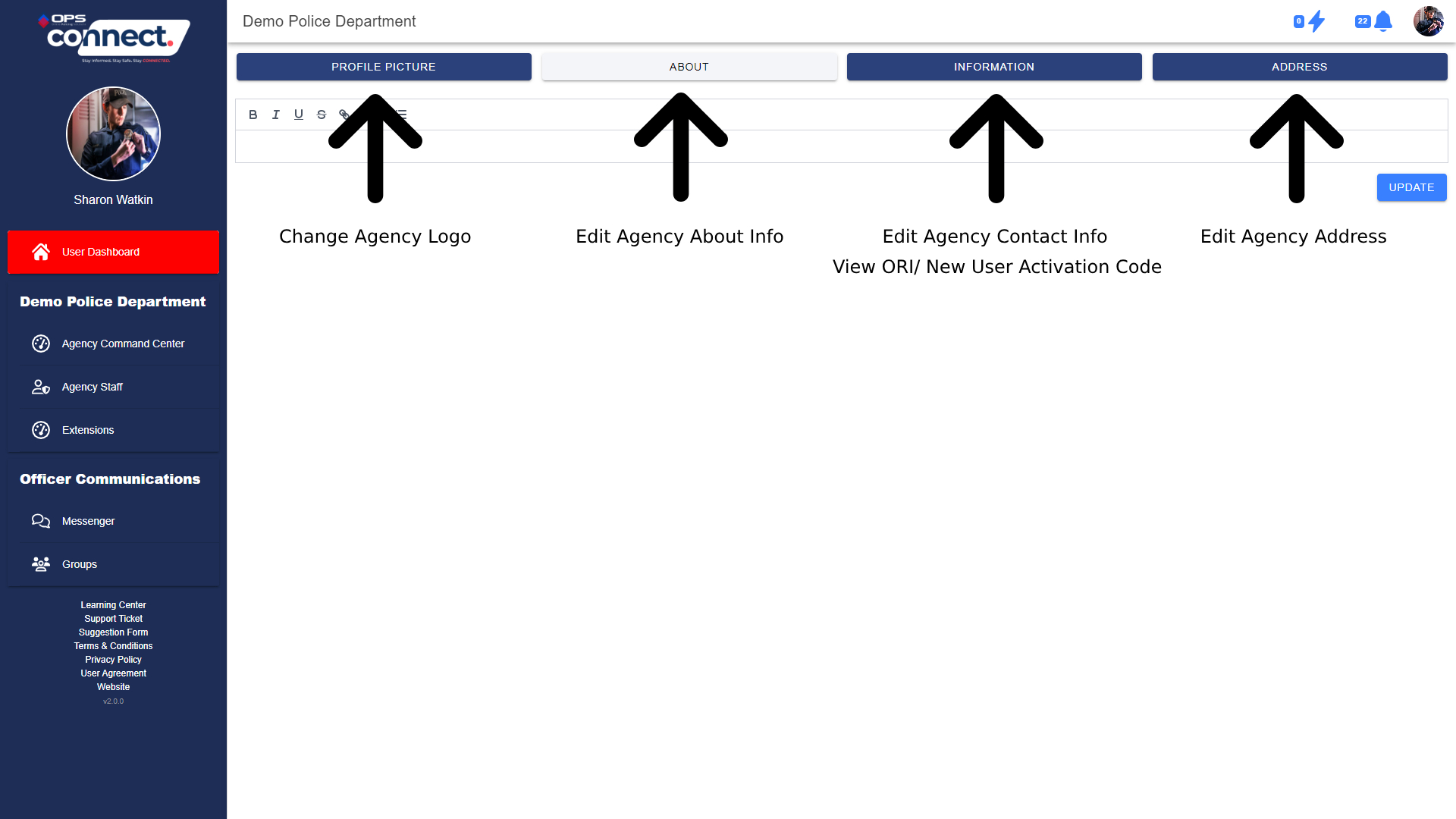
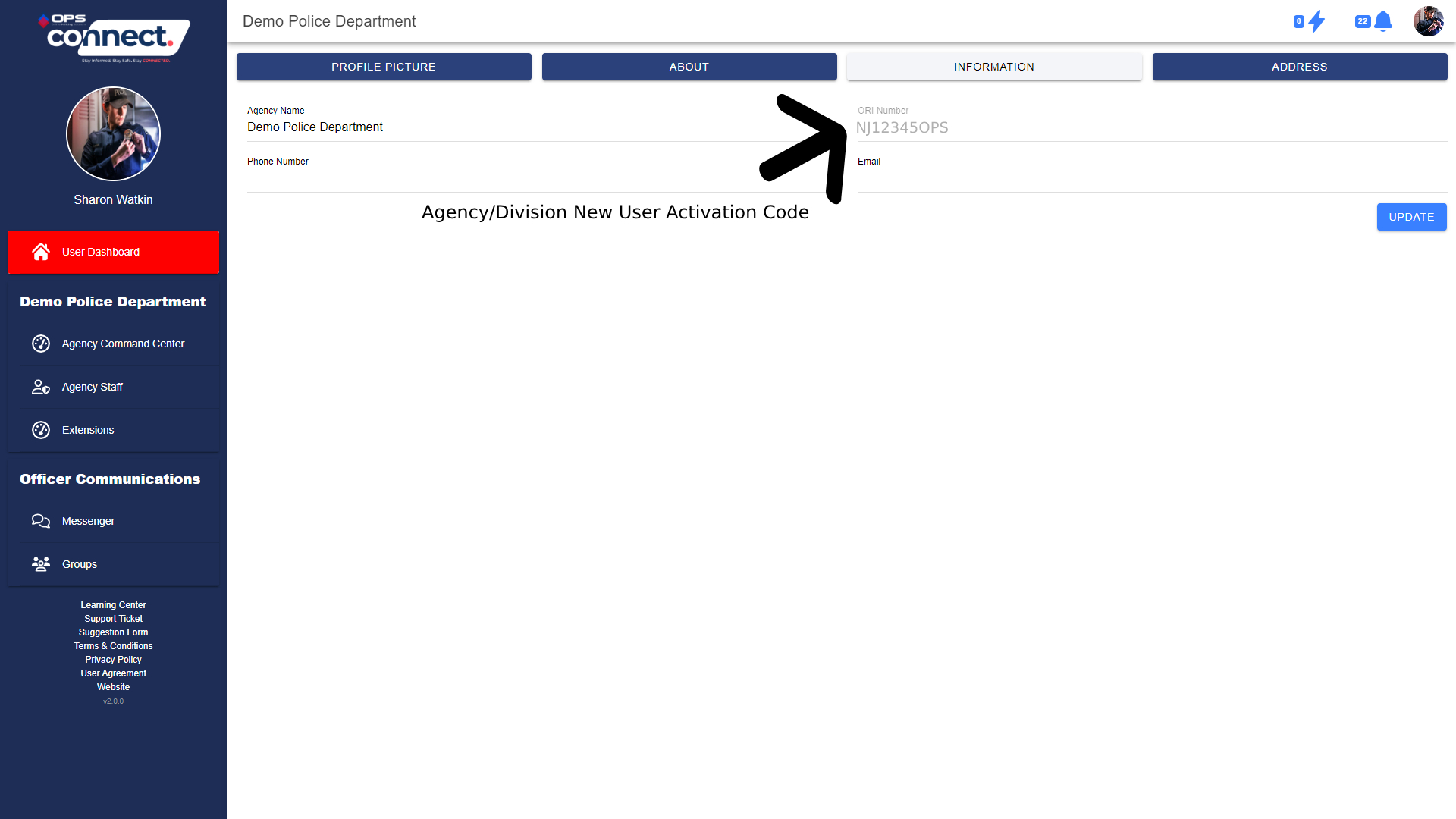
- When clicked on the user will see a button labeled “Information”. This button will contain the main information about the agency, to include the “ORI” number. (See Diagram Below)
- This ORI number is the code users will need when creating an OPS Connect account to access LENS and be accepted into the appropriate agency. (See Diagram Below)
- This may not be the main ORI for an agency, if the user is joining a division within a larger agency, so never assume that the ORI will match the main agency ORI.
VIEW ANIMATED GRAPHIC
How do I update my agency/division logo in the network?
- Master Administrators and Staff Administrators can edit and update thier agency/division logo for the network by clicking on the Command Center link on the sidebar once logged into OPS Connect. (See Diagram Below)
- On the top of the Command Center sidebar, under the Agency’s Name, the user will see a link called “Manage Agency Profile”. (See Diagram Below)
- When clicked on the user will see a button labeled “Profile Picture”. This button will take the user to the area where they can update/add their agency/division logo. (See Diagram Below)
Why do agency users have to upload a profile image?
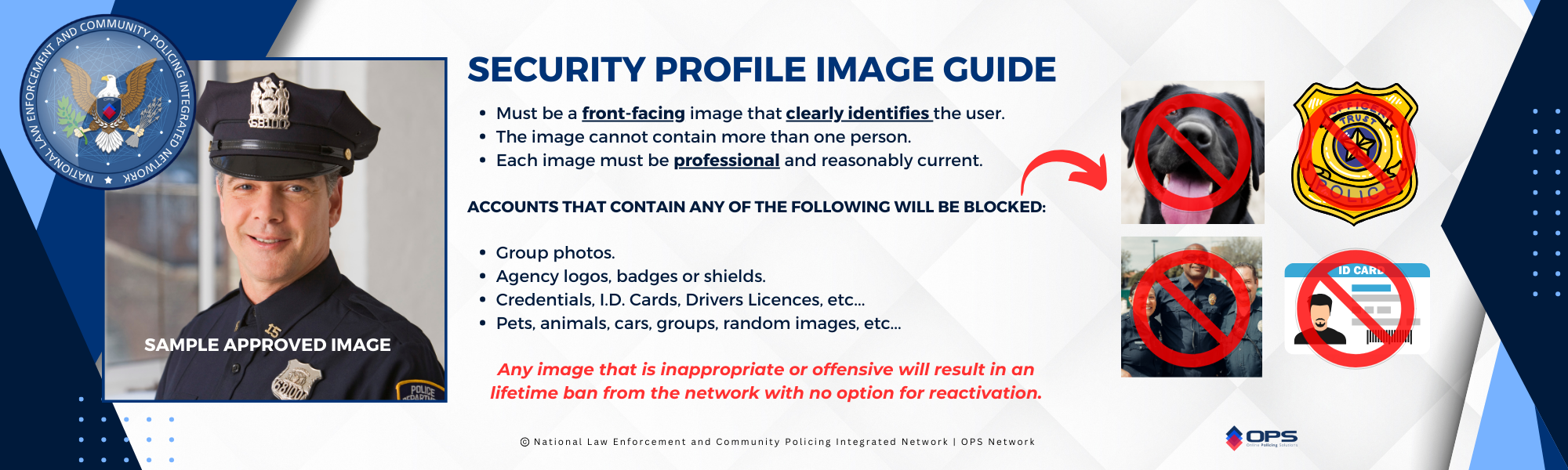
A profile photo is now commonplace in the field of advanced online network security, primarily to enhance network accountability and trust among users.
Here are several reasons why it aids in online security and is utilized within the National Law Enforcement and Community Policing Integrated Network (NLECPIN), commonly known as the OPS Network:
- Authentication: A profile photo serves as a visual identifier, making it easier for users to confirm the identity of the person they are interacting with while assisting network administrators when onboarding users. This critical step helps prevent impersonation and identity theft.
- Human Verification: By displaying a real photo, users can verify that the account belongs to a real person rather than a fake or automated account (bot). This reduces the risk of interacting with malicious entities or hijacked accounts.
- Deterrence Against Misconduct: Users are less likely to engage in inappropriate or illegal behavior if their real identity and photo are associated with their account. This acts as a deterrent against many forms of misconduct.
- Trust and Credibility: Seeing a profile photo instills trust and credibility in online interactions. It promotes a sense of transparency and authenticity, which is crucial in building relationships and interacting online, especially in the public safety sector.
- Community Standards Enforcement: The OPS Network enforces strict community standards and policies for use while operating within the network and these standards are more effective when users have identifiable profile photos. This helps maintain a safer and more respectful online environment.
- Easier Identification: In the event of security incidents or disputes, having a profile photo for each user makes it easier for administrators to identify and take appropriate actions against offenders or violators, identify stolen accounts or users attempting to access their network.
Requiring a profile photo contributes significantly to online security by reducing anonymity, promoting accountability, and fostering a more trustworthy online community and is a requirement to maintain an account within the OPS Network.
At this time, no user can maintain a user account with the network without the proper (and appropriate) profile image in place at all times.
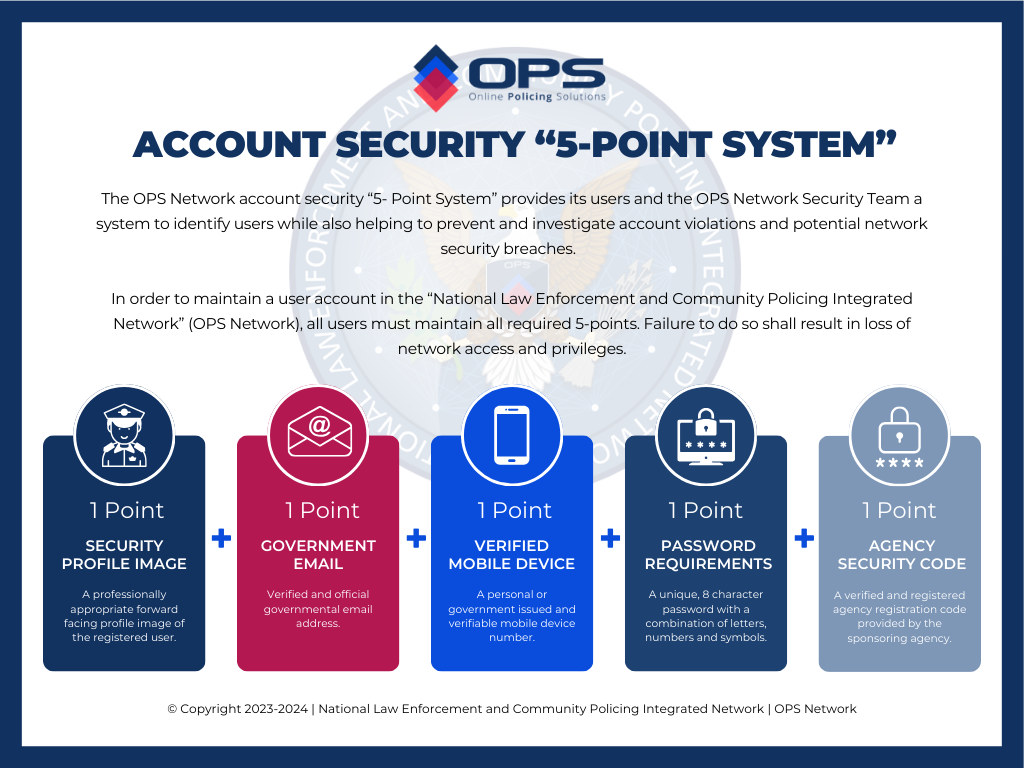
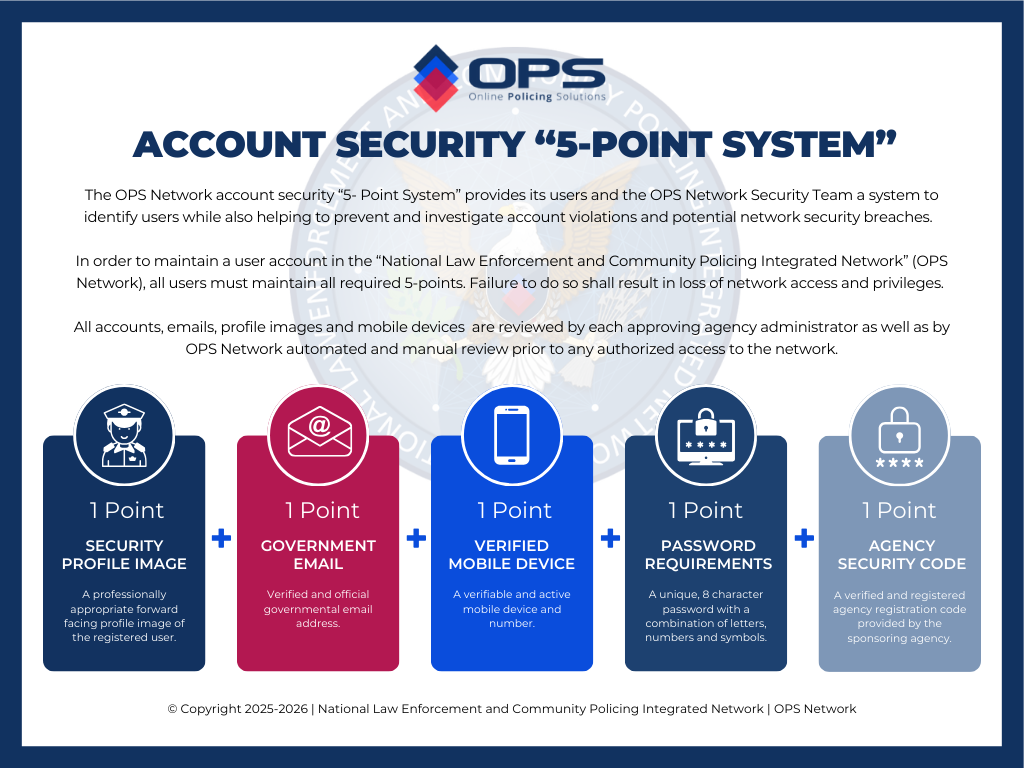
The OPS Network utlizes a 5-Point initial and continuing account verification system.
What happens if a user is blocked for a security violation?
Users are responsible for their own account and agree to the same when registering for an account with the National Law Enforcement and Community Policing Integrated Network (NLECPLIN) – OPS Network.
If a user submits an invalid profile image, phone number, password or email address during the registration process or anytime while operating within the network, the account will be blocked for security reasons and will require further verification that the account is valid.
- The user (not the sponsoring agency) will receive an email notifying them of the violation and providing them with the steps they will need to take to request their account be reactivated.
- This responsibility falls on the user who created the account.
- Neither OPS Network Support nor OPS Network Security will contact or notify the agency.
- It is up to the user to take the needed steps to notify their sponsoring agency’s Master Administrator that they are blocked and share the instructions on how to initiate the reactivation process.
- Once the sponsoring agency’s Master Administrator makes an official request to reactivate a user, from the Master Administrators registered email address, the process will begin to reactivate the user.
- This process can take up to 90 days to complete.
- Once the process is complete, the user will be notified.
- It will once again be the user’s responsibility to provide the Master Administrator with the instructions to finalize the process.
As stated above, each violation is the responsibility of the user to manage and correct. In addition, repeated violations will result in permanent loss of network access.
PLEASE BE ADVISED THAT IF THE BLOCKED ACCOUNT BELONGS TO A NETWORK OR OPS LENS MASTER ADMINISTRATOR, SUSPENSION OF THE ACCOUNT WILL RESULT IN LOSS OF ACCESS FOR ALL AGENCY USERS.
Community Related
What is the “National Public Safety Alliance for Individuals with Disabilities” (AID Program)?
The “National Public Safety Alliance for Individuals with Disabilities” is a voluntary service open to all citizens who are affected in some way by a disability.
More specifically, the “National Public Safety Alliance for Individuals with Disabilities” is a database that contains profiles of persons with disabilities. The information provides law enforcement and other first responders with vital information about each participants needs in the event of an emergency or interaction with law enforcement.
How are new accounts from the community verified?
When a community partner creates a “Primary Contact” account, each step of the way thier account is verified by the NPS-AID system.
- The user is required to provide a valid mobile device number, which is verified by way of SMS code.
- The user is required to provide a valid email, which is verified by way of email verification code.
- Lastly, the users address, and all participant addresses, are verified and must be a valid United States address.
If any of the above fail, the users account will not be validated.
How does a user create a new account or access an active account to edit?
Access the NPS-AID system via any participating agency website, OPS Network Community Inteface or from WWW.NPS-AID.ORG and follow the guide below. (click on guide to open)

What features are available once an account is created?
Once a community member has created a Primary Account, adding and managing participants is quick and easy. Reference the below guide for features details. (click on guide to open)

Who has access to the person’s profile?
Information provided to the “National Public Safety Alliance for Individuals with Disabilities” will only be shared with first responders during a law enforcement interaction, emergency or for the purpose of planning an emergency response.
What is considered an emergency or “interaction”?
An emergency can best be defined as any event that may require a response, immediate or otherwise, by law enforcement or other first responders. Examples of emergencies include but are not limited to medical emergencies, natural disasters, fires, mandatory evacuations and crimes in progress. An “interaction” can be defined as any contact with law enforcement or first responders in an official capacity.
How will the information contained in the NPSAID help a person with as disability during an emergency?
The information contained in the “National Public Safety Alliance for Individuals with Disabilities” can help in several different ways. Upon being dispatched to a residence, police dispatchers can be made aware that someone at that location has a disability. Depending upon the type of call, the dispatcher can better assess the type of response necessary and dispatch resources accordingly. Also, police officers and/or first responders may be notified that there may be someone at the location with a disability, so that they can better gauge their respective responses.
In the event that a person with disability is reported missing, first responders will have access to current photographs and other vital information that can aid in locating the missing person more expeditiously. As we all know, in an emergency – time is of the essence.
Who is eligible to participate?
The “National Public Safety Alliance for Individuals with Disabilities” is open to any person who has a physical or mental impairment that substantially limits one or more major life activities due to a physical and/or intellectual disability.
Who can provide information?
A person can submit information themselves or a caretaker or loved one can submit information on thier behalf if authorized.
What if user needs to make a change?
No account creation is needed when participating in the “National Public Safety Alliance for Individuals with Disabilities”. When you complete your registration, you will be provided with details on how you can update your information as needed.
Agency User Related FAQ
How do you activate web notifications (turn the icons from red to blue)?

OPS NPS-AID™ & OPS CONNECT™ Video Training
Please be advised that the OPS Network™ is always improving and changing. Some of the tutorial videos may differ slightly from the current version of NPS-AID. In addition, most training videos use a “test network” for demo purposes, and do not always present exactly as the live network.
Overview training for all NPS-AID chapter agency users.
VIDEO TRAINING KEY. Quickly locate key training points throughout the video. OPEN TRAINING KEY
00:19:30.00
© 2025 – 2026 Online Policing Solutions, Inc. All Rights Reserved.
NPS-AID SUPPORT TICKET SYSTEM
The OPS Network™ NPS-AID Support Ticket System is meant to give OPS Network Partner Agency members a quick and easy method to report technical issues or glitches in the network.
– PLEASE READ COMPLETELY PRIOR TO SUBMITTING A SUPPORT REQUEST –
Please complete the below request form, providing any and all details regarding your technical concern.
We will address ALL reported issues and respond promptly. – Thank you.
If you need to forward a screenshot image of an issue, please direct all technical support images to: support@opspolice.com
Start Support Ticket

Training Package
All of the resources needed to implement an agency’s NPS-AID platform.
NEW USER NOTIFICATION & INSTRUCTIONS TEMPLATE
Copy and paste the below template, changing your agency ORI Code and the “due by” date, both highlighted in red/bold, and forward to all agency members that will be required to sign up for an Online Policing Solutions Network account, in order to access the NPS-AID platform.
These instructions not only provide the details needed to create a NPS-AID account, but also training instructions and links to the supporting materials and assets needed to use the platform. This template may be modified as needed to accommodate individual agency protocols and regulations.
——————————————————————–
MESSAGE TITLE (Copy and Paste) ↴
NPS-AID – NEW OPS NETWORK USER ACCOUNT SETUP AND TRAINING
BODY OF MESSAGE (Copy and Paste, including the links to the supporting assets and the image below) ↴
**IMPORTANT NOTICE** READ COMPLETELY BEFORE PROCEEDING
You have been authorized to create an account within the “National Law Enforcement and Community Policing Integrated Network” (commonly referred to as the OPS Network) in order to access “National Public Safety Alliance for Individuals with Disabilities” (NPS-AID) platform.
By creating an account, you will be provided access to NPS-AID and the features your permission level will allow. At the bottom of this message are instructions and supporting links to NPS-AID related assets that will assist you with becoming familiar with NPS-AID and its features.
****Once again, please read the below instructions completely before beginning the sign-up process.****
For additional assistance with creating your user account, you can view the following video: SIGN UP OVERVIEW VIDEO
To register, please follow the below instructions:
STEP 1: Go to: https://opspolice.network by typing the same into your internet browser bar or by clicking the supplied link at the end of this email. Users must use Google Chrome, Microsoft Edge or a modern browser. The Online Policing Solutions Network will not work on Internet Explorer or other outdated browsers.
STEP 2: Once on the “OPS Connect” login page, click on the “Register” link, located just under the login fields. From the new account registration page, complete the following:
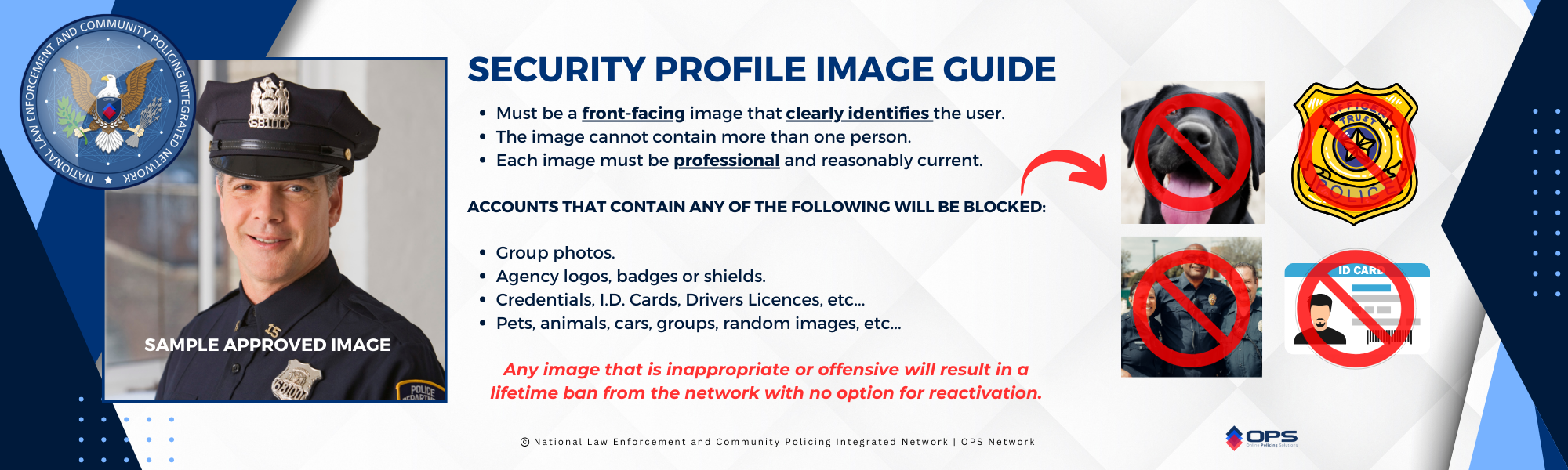
- Add an appropriate front-facing profile image. This image is for account security purposes and MUST be an appropriate profile image that will easily identify you as the user registering (i.e: Professional profile picture or “selfie”). The image can be uploaded from a file or taken live from a mobile device if registering from a mobile phone.
***IMPORTANT NOTE***: Any other images, to include agency logos, badges, general images, computer wallpaper, group photos, etc…will result in the user being blocked from the network.
- Add your full first name (no nicknames, title or rank).
- Add your full last name (no nicknames, title or rank).
- Add your official governmental agency email address. Only your official government agency email address may be used. Non-governmental emails (Gmail, yahoo, etc..) will be rejected by the network.
- Add a mobile phone number (to receive 2-factor authentication codes).
- Create a unique password. Make sure the provided password is at least eight (8) characters long and contains at least one letter, number and symbol.
- Enter this code in the “Registration Code” field: Place Agency Code Here Before Distributing Message
STEP 3: Confirm your registration in the link that you will receive in your agency email.
STEP 4: Once completed, your new account will be reviewed and approved if completed properly.
STEP 5: Once you are notified that you are approved, you can log into the Online Policing Solutions Network, read and approve the “Agree to Terms”.
That will complete your network account creation and provide access to the NPS-AID platform.
CLICK HERE TO START REGISTRATION
AFTER ACCOUNT APPROVAL – INSTRUCTIONS:
Once you have been approved to access the Online Policing Solutions Network and been given the appropriate permissions, you are instructed to visit the “Learning and Resource Center”, which can be located on the secure network’s sidebar menu on the OPS CONNECT application, by clicking on the “Learning Center” link (click here for diagram of the link location). Once in the “Learning Center”, navigate to the “NPS-AID Learning and Resource Center” (or click the provided link at the bottom of this message).
From the “NPS-AID Learning and Resource Center”, you are instructed to review the information provided and familiarize yourself with the features of the NPS-AID platform.
The deadline for completing the above is no later than ADD DATE HERE.
SUPPORTING ASSETS:

Agency NPS-AID “Community Web Portal” Activation
As a NPS-AID chapter agency, you can guide your disabled community partners to join the NPS-AID program via your own custom NPS-AID chapter “Community Portal”. This will ensure your local community member participation is documented in your agency’s primary NPS-AID database.
The link to your agency’s NPS-AID chapter “Community Portal” was provided to your agency’s NPS-AID administrator within the NPS-AID welcome package they received.
To initiate your portal, simply request your agency’s webmaster add the provided link to a button or link located on your agency website. This link can also be shared on social media and any other format as needed. *
When clicked on, users will be directed to your agency’s NPS-AID “Community Portal” to begin the quick and easy partnership process.
*Full OPS Network Partner Agencies: Your NPS-AID Chapter Community Portal is already active within your OPS Network Agency Community Interface. No further action is needed.
NPS-AID Permission Levels
When setting up permissions for agency users to access and utilize the NPS-AID platform, there are two (2) available permission levels that are documented below.
USER: Users with this permission level will be able to search the “Public Safety AID” system and add notes but will not get notified when new participants join “Public Safety AID” or be able to process new community participants.
For this permission, Staff Admins will check all permission boxes in the permission level minus the “Admin” tab. Click on the below graphic to view an example.

ADMINISTRATOR: This permission level will be able to search the Public Safety AID system and add notes as well as get notified when new participants join Public Safety AID and be able to process new participants.
For this permission, Staff Admins will check all permission boxes, including the “Admin” tab – Click on the below graphic to view an example.

“Train the Trainer” Implementation Package
The below is provided for all county, state and federal LENS Administrators overseeing a LENS activation for local/municipal departments and/or agencies that fall within their jurisdiction.
USE INSTRUCTIONS: Copy and paste the below email title and body template, then deploy to all identified agency liaisons in the agencies the user is charged with assisting.
The below email provides all of the details needed to establish the LENS platform in an agency, as well as the required supporting materials.
——————————————————————–
EMAIL MESSAGE TITLE (Copy and Paste) ↴
L.E.N.S. – NEW AGENCY SETUP AND TRAINING
BODY OF EMAIL (Copy and Paste, including the links to the supporting assets) ↴
This email is reaching you as you have been chosen by your agency to serve as your agency’s “Law Enforcement Notification and Sharing” (L.E.N.S.) platform liaison. You should have already received confirmation that your LENS Administrative user account was activated, with instructions on accessing the L.E.N.S. platform, from members of Online Policing Solutions, on behalf of the New Jersey State Police.
Background
In March of 2024, the New Jersey State Police announced the implementation of an all-new statewide law enforcement notification and information sharing platform. The “Law Enforcement Notification & Sharing” (L.E.N.S.) platform was developed and is operated by Online Police Solutions, Inc.
L.E.N.S. was developed to help keep our law enforcement community safe by providing real-time notifications and interactive communications across jurisdictional borders, on a secure and modern law enforcement specific platform. L.E.N.S. is not an email system but rather a cutting-edge communication tool intended to replace the APBnet Trak Flier software.
The contract with APBnet expires June 30, 2024, and the state aims for the training and implementation of L.E.N.S. to be completed in all agencies prior to July 1, 2024, at which time they anticipate going “live” with the platform statewide.
L.E.N.S. is being made available to all federal, state, county, and local law enforcement agencies operating throughout the State of New Jersey at no cost. Authorized officers will be able to utilize L.E.N.S. to make notifications to law enforcement members and agencies statewide as well as to select private sector groups and stakeholders such as public officials, hospitals, utilities, and schools.
Activation Details
Please know every possible step has been taken to make this procedure very streamlined, with minimal impact on your primary duties.
At the bottom of this email you will find a “L.E.N.S. Agency Activation User Guide”, “Training Outline” and “Start Up Guide and Network Activation” video. The “User Guide” and video contains links and QR codes to the “L.E.N.S. Learning Center” as well as step-by-step instructions on implementing your L.E.N.S. platform. (All provided materials are available on the L.E.N.S. Learning Center as well.)
The “User Guide” and video provide the details needed to access the “L.E.N.S. Learning Center” which contains the provided fifteen (15) LENS Training Series videos that will teach all users how to navigate and utilize the L.E.N.S. platform. With an average viewing time of 2.5 minutes (1 to 4 minutes each), these videos cover EVERY aspect of the L.E.N.S. platform.
Once all the videos are completely watched, each user will have all the knowledge needed to competently utilize the L.E.N.S. platform.
The key to a successful L.E.N.S. agency implementation is the L.E.N.S. Learning Center, which can be accessed, once logged into the Online Policing Solutions Network, via the OPS Connect application’s blue sidebar by clicking on “Learning Center” link and then navigating to the “L.E.N.S. Learning Center (click to view diagram of link location), or direct by visiting: https://lenshelp.opsnetwork.org
In addition, the L.E.N.S. Learning Center provides the instructions and detailed email notification template needed to onboard those members in your agency that your leadership decides to grant L.E.N.S. access.
The attached “Training Outline” provides a comprehensive index of the features of the L.E.N.S. platform, and the corresponding video that contains the needed training for each component.
If a user, for example, is not sure how to “Send a Notification”, they can proceed to the L.E.N.S. Learning Center, or refer to the “Training Outline”, where they will see that “Video #4” provides the needed instruction on this feature.
Policy Implementation
In addition to the above, the L.E.N.S. Learning Center provides a pre-approved policy template that can be downloaded and adopted by your agency to ensure that users are complying with state guidelines on the use of the L.E.N.S. platform.
Each step needed to complete the statewide L.E.N.S. implementation for your agency is provided in the below attachments and the L.E.N.S. Learning Center. By following the steps documented in the “L.E.N.S. Agency Activation User Guide” and the “Start Up Guide and Network Activation” video, and completing the L.E.N.S. Training Video Series, you will complete your agency’s LENS activation in a very short amount of time.
SUPPORTING ASSETS:

USER ACCOUNT SECURITY GUIDES
CLICK IMAGE TO ENLARGE FOR VIEWING
CLICK IMAGE TO ENLARGE FOR VIEWING
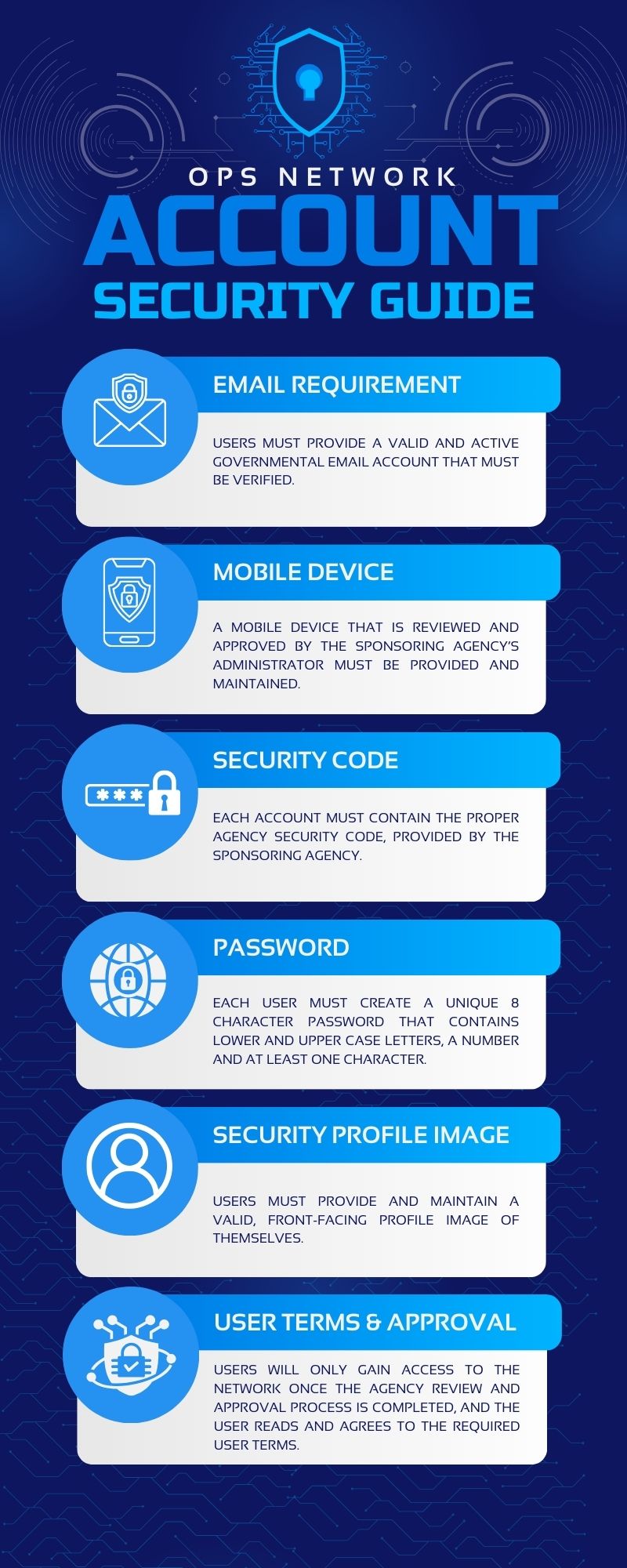
CLICK IMAGE TO ENLARGE FOR VIEWING

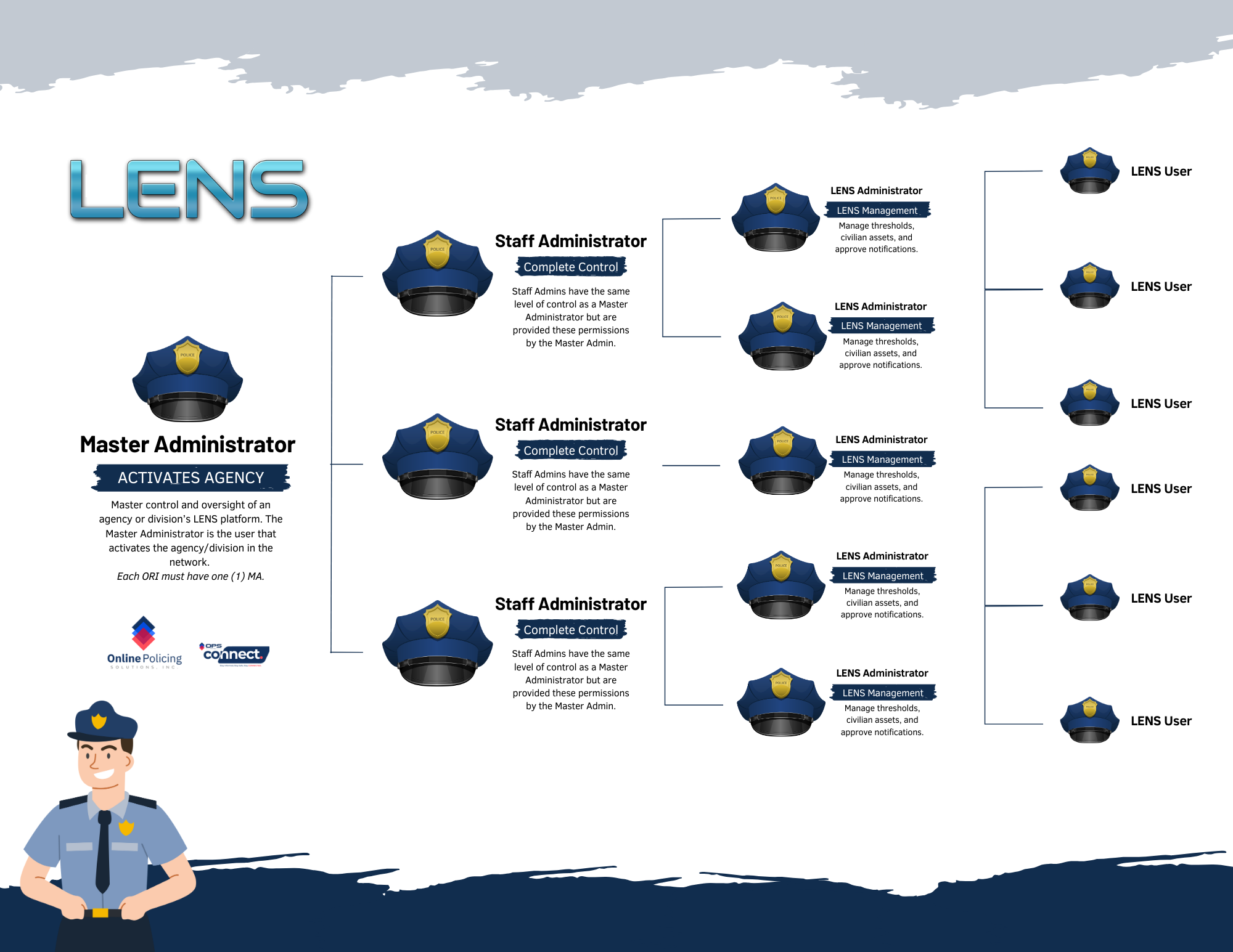
Draft Policy Template
The below button will open an editable Word Document that contains an approved Statewide LENS draft policy. This policy can be downloaded and edited as needed. Once complete, the finalized policy can be placed on the agency policy letterhead and into the policy stream.
REQUEST YOUR I.T. DEPARTMENT “WHITE-LABEL” THE FOLLOWING:
opspolice.network
opspolice.com
no-reply@nps-aid.org
White labeling these addresses will ensure all email notifications from the OPS Network are received properly.
IMPORTANT NOTICE FOR NEW LENS MASTER ADMINISTRATORS
All new LENS Master Administrators must log into OPS CONNECT and assign themselves permissions, customarily “Staff Administrator”, in order to receive alerts and have the ability to approve and post notifications.
Step 1. Log into OPS CONNECT
Step 2. Proceed to the Staff tab.
Step 3. Click on “Edit” next the Master Admin’s name.
Step 4. Proceed to the bottom of the modal and assign the appropriate “Permission Group”.
Step 5. Click “Update”
Step 6. Refresh your OPS CONNECT.
AGEncy/User Activation Code Information
- Master Administrators can locate their agency’s user activation code by clicking on the Command Center link on the sidebar once logged into OPS Connect. (See Animation Below)
- On the top of the Command Center sidebar, under the agency name, the user will see a link called “Manage Agency Profile”. (See Animation Below)
- When clicked on the user will see a button labeled “Information”. This button will contain the main information about the agency, to include the agency “activation” code number. (See Animation Below)
- This number is the code users will need when creating an OPS Connect account to access LENS and be accepted into the appropriate agency. (See Animation Below)